Yes, the uplink for the DC (how it gets power and internet). It supplies the rover with internet which when you don’t use bluetooth is how the app connects to the core (over the internet).
Gotcha. If you watch the video, as I pan across the roof, the DTG is right there front and center quite high with perfect line of site to the rover. Then, as mentioned it’s connected via POE to an enterprise level switch and Unifi Gateway with Google fiber 8gig up and down, so my network is not slouchy.
Definitely not. But your DC might still have an issue. The diagnostics screen will tell me if it’s that or not.
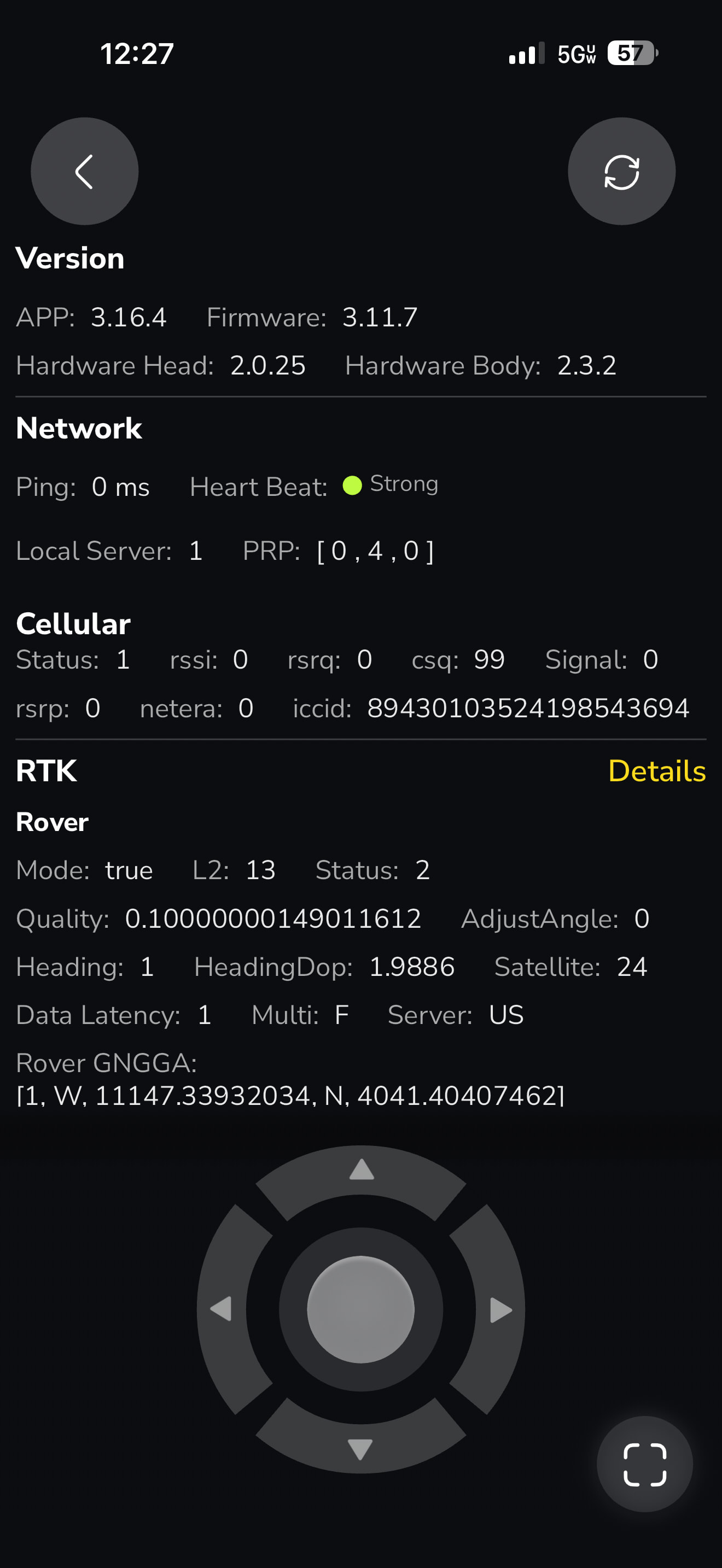


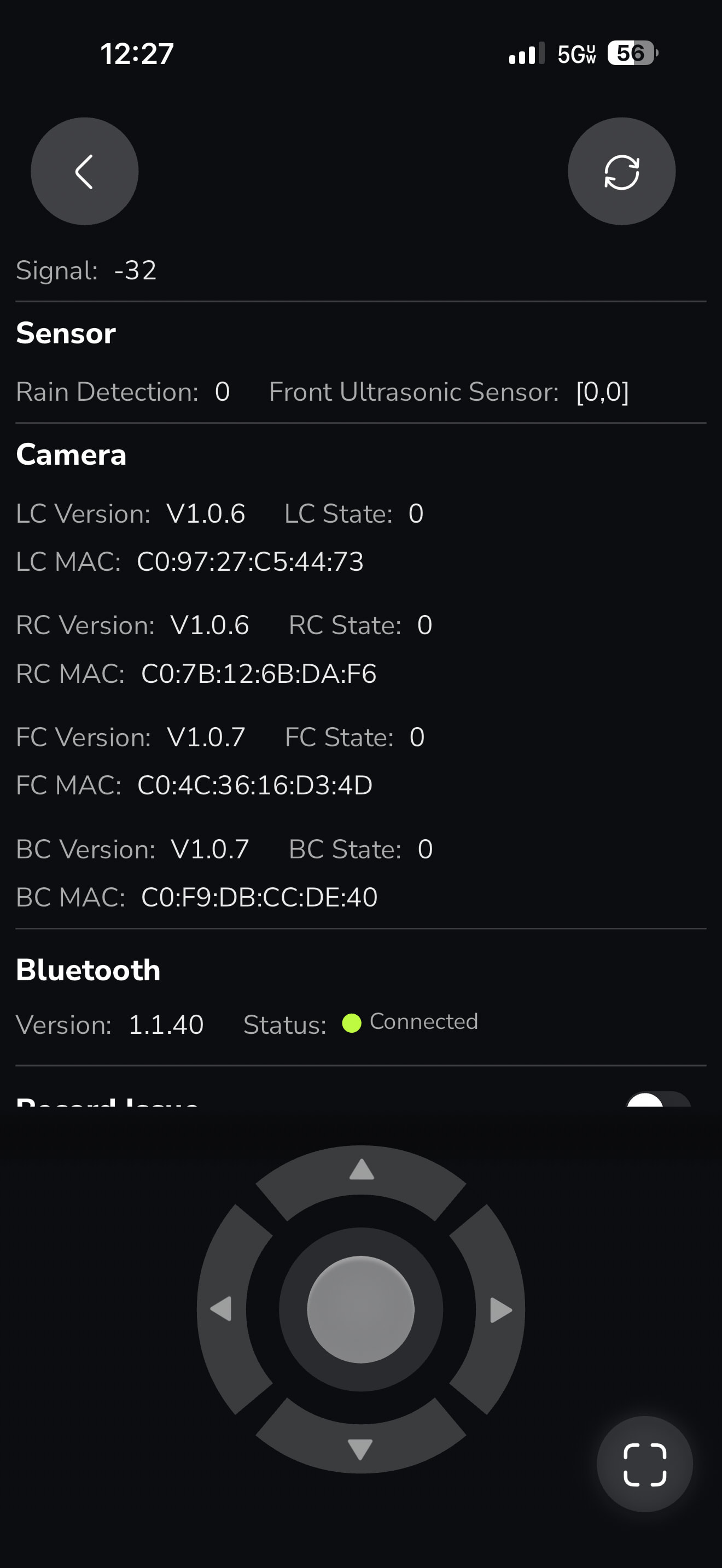
Yep - just what I suspected. Connection 3 means it’s in local HaLow mode. This might be part of your issue with mapping and is certainly why you can’t connect when bluetooth is disabled. Also explains all your network issues. Bluetooth can be a little spotty especially with certain Android phones.
Lets’s try this. Unplug the DC for 5 mins. Also unplug the battery cable to your core for the same 5 mins. Power up the DC and wait for it to go green. Once up, power up the core. Then check the diagnostics for Data Center Connection. You want to see status 2, which means it has internet. Then you can try to map with bluetooth off again. IF it still is 3, a solid 3 (flipping between 2 and 3 is normal), then check and make sure you see connection on your UniFi equipment. It needs to be FastEthernet (100Mbps). It won’t work on Gigabit Ethernet only ports. Also make sure your firewall isn’t blocking anything from the DC or the Yarbo Core (which connects through the DC). You can refer to this wiki article for more information. HaLow Disconnects While Data Center Is Offline (DC Connection = 3) | Yarbo Wiki
You could also try enabling cellular on the core to try and get through mapping if none of the above is helpful. It will use that for app communications and NTRIP.
Thank you for all of that! I will go reboot everything and report back. Strange that it isn’t getting NTRIP!
In local HaLow (status 3) it uses the DC as the server for RTK. When internet connectivity is there (Status 2) the DC will stream the correction data to Yarbo’s servers. This is so you can failover to cellular or WiFi (not recommended) and you can still get correction data and connect to the core. It can work in offline mode, but it may be a little finicky with mapping. Just a guess but so far nothing I am seeing is screaming this won’t work.
So does Status 3 basically mean Yarbo and/or the DC can’t get out to the Internet?
3 means DC no internet/connection to Yarbo’s server. 4G or WiFi icon on the app main screen means the rover can’t get to the internet over HaLow (through the DC).
every time @bryan.wheeler writes up a response I learn something new. That guy is a genius….
I too am on Unifi (Dream Router 7). It does seem to need a reboot of the datacenter from time to time.
I do see the status of 2 and 3 switching but only when I refresh the diagnostic screen. Just my experience may not be everyone’s.
Ok, great news! We’ve taken 2 steps forward and only one step back:
Good news, after rebooting everything, I’m getting status 2 and 3 alternating now. And I was finally able to successfully map the driveway from hell and watched it start and go through most of it before I cancelled it. YAY!
Now the bad news:
I’m trying to map a lower section of the lane in front of my driveway, to me it appears to have a lot more sky coverage. But there is an area it keeps saying it lost the break point and to navigate back, and when I navigate back and it sees I’m connected to the map again and let’s me click ‘ok’ - instead of resuming the map that I’ve worked hard on, the entire map vanishes and that is the new start point. It did that 3 times in a row, so I cannot for the life of me get this new area completed.
Why is it erasing the map entirely instead of resuming?
I can’t thank you (and everyone) for all the help chiming in, sorry for being a bit negative at first, but I can tell there is an active community here trying to help and see this product through!
When you are mapping that section, does it go into medium or red GPS? Are you able to pay attention when you are mapping if it does? It helps if you can stop the moment it loses GPS and let it kinda gather its fix (go green). This can be tricky if it’s a bad spot with poor GPS, you generally don’t want to linger too long in those spots. You might need to bump up your PPVS settings a little more, but 35 on mapping is pushing it for my tastes. Feel free to experiment here, just make sure you watch it run a few times and it is accurate on the map. Another thing to keep in mind is when mapping, stay close, but not too close. Your body can block the GPS signals too. If you’re right on top of the robot, it can have an impact. Also facing the rear of the core, keep the left antenna away from the boundary line you are mapping. This is how it is going to execute the plan. The left antenna is the primary antenna and keeping it away from obstructions helps you get a better map. This is also why it runs the plan this direction too. It does the same with no go zones, it keeps the antenna away from the interior of the NGZ. Here is an article that helps explain it in a little more detail. What Direction Should I Map Working Areas and No-Go Zones? | Yarbo Wiki
Yes, the community is very active and passionate about helping to see everyone enjoy their robot. We’ve all been where you are, trying to work through some of the nuances of the system. Once you learn them and get things tweaked and dialed in, it works pretty well. Learning curve for sure and not for people who aren’t tech savvy or have someone handy who is. However, I have definitely seen those people in the community too and with the community’s help they’ve been successful too.
Thanks for all of that… what’s frustrating is that the GPS indicator on my app is GREEN throughout these areas, and then it suddenly has lost the break point and wants me to go back, and then it turns orange/yellow… it’s like there is a massive delay between it showing it has good GPS but really doesn’t.
I can try all of that, and have done all of that when I was mapping the drive way (the driveway lost the break point all the time, I would go back, and it would resume),.
What I’m not grasping is why this area won’t resume and instead erases the entire map every single time. It has the map, it seems me connect to the break point, tells me to hit ‘ok’, and then it erases the entire map it just had me reconnect to…. GRRR
It’s pretty easy for the frustration to build when things dont work as expected. And it gets even worse when none of the suggestions pan out.
The negativity seems logical to me when you spend the kind of money that we’ve spent and mapping isn’t working as expected. But being on the other side of the mapping issues when things are running as expected its pretty nice.
the struggle is real. 
Agreed! I shudder to think of people with even less patience and tech experience than I! LOL.
Do you stop and wait for it as soon as it loses the break point? Sometimes just waiting it will catch up when the signal is good again (assuming it isn’t). The loss of the map sounds like a bug. You can YOLO it and crank up the mapping PPVS setting some more and possibly get through the mapping process. Again, watch it like a hawk when you run that section and make sure it is really where it thinks it is on the map.
Hopefully someone else in the community who’s seen this can chime in and offer some wisdom too.
This probably doesn’t qualify as wisdom some much, but my PPVS Drawing Max Travel Distance is set to 200 ft. I had one area that was unreliable to map. I have and will likely continue to watch that area like a hawk when Yarbo is over there. 200 ft is a LONG way.